![logo_white_noballoon_735x250.png]](https://help.deedmob.com/hs-fs/hubfs/logo_white_noballoon_735x250.png?width=147&height=40&name=logo_white_noballoon_735x250.png)
Welcome to the platform, the place for volunteer work in your local community. You have registered as a volunteer organisation. In this guide, you will find information on the following topics (click on the topic to be linked through directly):
- Where can I find and edit my organisation page?
- How do I post a volunteer opportunity?
- How can I add administrators?
- Where can I find applications for a volunteer opportunity, and how do I manage them?
Where can I find and edit my organisation page?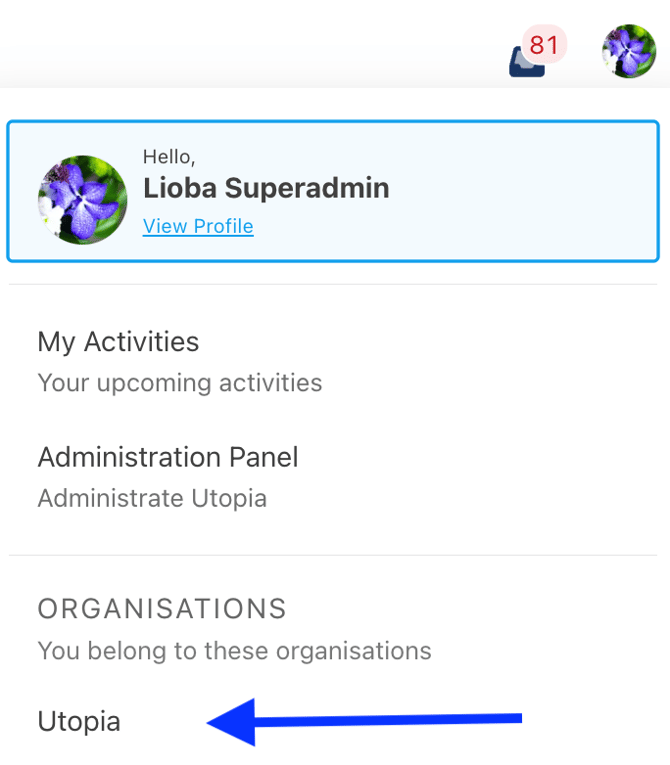
- Log in
- Click on the icon in the top right
corner (your initials or profile picture) - Click on the name of your organisation
- In the left-hand menu, click “Your page”
- Here you can edit your settings
How do I post a volunteer opportunity?
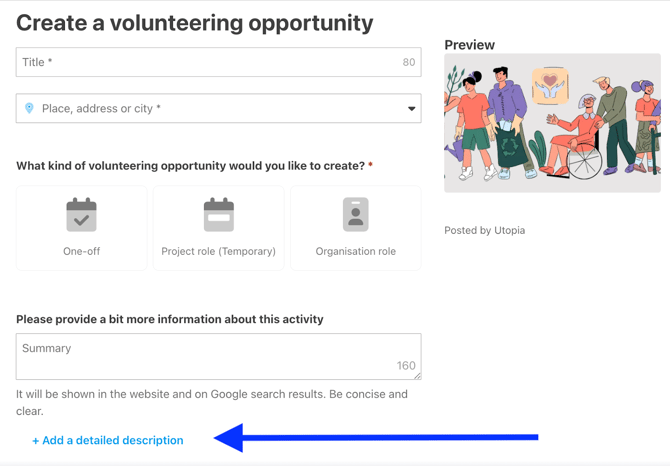
Go to your organization page and, in the left-hand menu, click “Activities”. Then click “Add activity” and select “Volunteering opportunity.”

Fill in all the fields on the next page and provide as much information as possible about the volunteer opportunity. Then click “Publish” to post it.
Note: Click “Add a detailed description” under the summary to provide more information.
Do you want to edit an opportunity? Click here to learn how you can edit the information and the image.
How can I add administrators?
- Go to your organisation page and, in the left-hand menu, click “People”
- Click “Add” at the top
- Enter the email address
- Fill in any missing information if the person does not have an account yet. Select “Administrator” as the access level
- The added person will receive a confirmation email
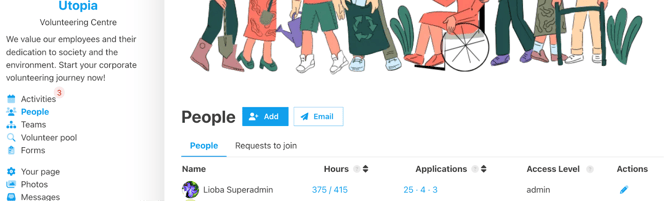
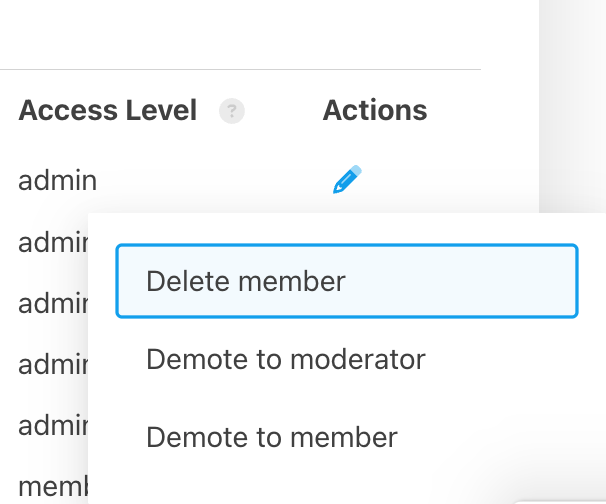
- To change or remove administrators, click the pencil icon next to the name and make a selection. Read more about the different access levels here.
Where can I find applications for a volunteer opportunity, and how do I manage them?
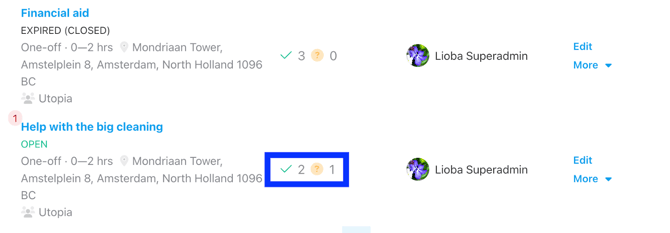
Go to your organization page and, in the left-hand menu, click “Activities”. Here you will see a list of all posted volunteer opportunities, workshops, and other activities.
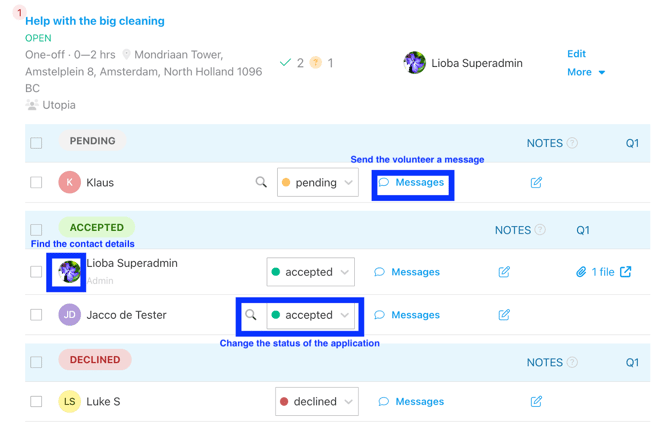
Next to each opportunity, you can see how many spots are available and how many applications have been submitted. The check mark and question mark indicate how many matches there are and how many applications are pending. Click on these icons to view all applications and applicants.
You can now contact the volunteer. Click “Messages” and a window will open with the volunteer’s message, where you can reply directly. If you prefer to call or email, click the icon next to the volunteer’s name to view their contact details.
Important: After the volunteer has started with your organisation, change the status to “Match”. If it doesn’t work out, mark the volunteer as “No match.”